ABBYY FineReader Processing

Use this guide after the organized item folders have been moved to DPLAB_STORAGE.
ABBYY FineReader processing creates the cleaned OCR output and PDF files used for Vtext and digital preservation. Work carefully. Quality is more important than speed.
Work from the local processing copy
Do not process files directly from the network drive. Working in ABBYY from DPLAB_STORAGE can cause problems such as locked files, slow processing, or incomplete saves. The files in DPLAB_STORAGE are a temporary backup in case anything goes wrong during processing.
For ABBYY's general OCR documentation, see Working with OCR in ABBYY FineReader.
Workflow Overview
| Step | Section | Purpose |
|---|---|---|
| 1 | Copy Files to Local Processing | Copy the item folder from DPLAB_STORAGE to the local processing folder before opening files in ABBYY. |
| 2 | Open Files in ABBYY FineReader | Open the page scans in ABBYY FineReader and confirm the project only needs to be saved if work must stop before export. |
| Review | Process Scan Pages | Confirm page order, missing pages, blank pages, orientation issues, and OCR problem areas before editing. |
| 3 | Edit Images | Clean up pages as needed with Split Pages, Rotate and Flip, Crop, Deskew, and other image tools. |
| 4 | Run OCR Recognition | Exit Image Editor, select all pages, and run OCR recognition before exporting. |
| 5 | Save Output Files | Save the full-size PDF master, access PDF, and OCR text file. |
| Check | Before Moving On | Confirm the item folder has the expected ABBYY outputs before continuing to Vtext. |
1. Copy Files to Local Processing
Copy the item folder from DPLAB_STORAGE to:
C:\DPLAB\processing
Work only from the local copy in C:\DPLAB\processing.
2. Open Files in ABBYY FineReader
- In Windows, open the organized item folder in
C:\DPLAB\processing. - Open the
scansfolder. - Select the scan files to be processed.
- Use one of these methods to open the files in ABBYY FineReader:
- Right-click the selected files, select Show more options if needed, select Convert with ABBYY FineReader, then select Open in OCR Editor.
- In FreeCommander, select Favorite Tools > Tools > Open in AbbyyFineReader.
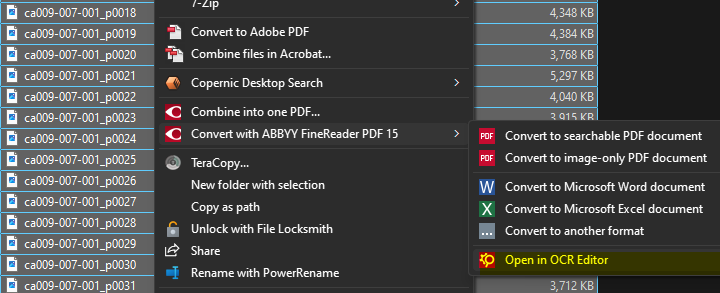
Students only need to save an ABBYY FineReader project file if they have to stop before completing PDF creation. If the item can be finished in the same work session, continue through export without creating a separate ABBYY project file.
Process Scan Pages
First, check that all pages loaded correctly.
Confirm:
- all expected pages are present
- page order is correct
- blank or unrelated pages have been removed
- sideways or upside-down pages are identified
- handwriting, vertical text, graphic-style text, maps, and other OCR problem areas are noted
3. Edit Images
Each page should be reviewed before final OCR and export. Use the image editing tools only when they are needed. The goal is to create a professional-looking PDF document.
- Click Edit Image in ABBYY FineReader.

- Use the image editing tools panel to process the pages.
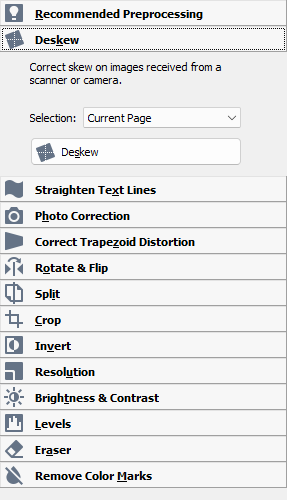
Split Pages (As Needed)
Use Split Pages when one scan image contains two separate pages.
For double-page scans:
- Use Split by Line to separate the pages.
- Review the split pages.
- Deskew the split pages again if needed.
Do not split double-page images or maps when the two-page spread should remain together for readability or context.
Rotate and Flip Pages (As Needed)
Use Rotate & Flip when needed.
Make sure every page is right-side up and properly orientated.
Crop Pages
Use Crop to remove excess borders from each page and standardize page widths. Use the outline tool to surround the page content and double-click to crop the page.
If the page is not perfectly straight, use the Deskew tool before cropping.
Try to find the smallest-width page scan in the item and use that width as the target crop size for the rest of the pages.
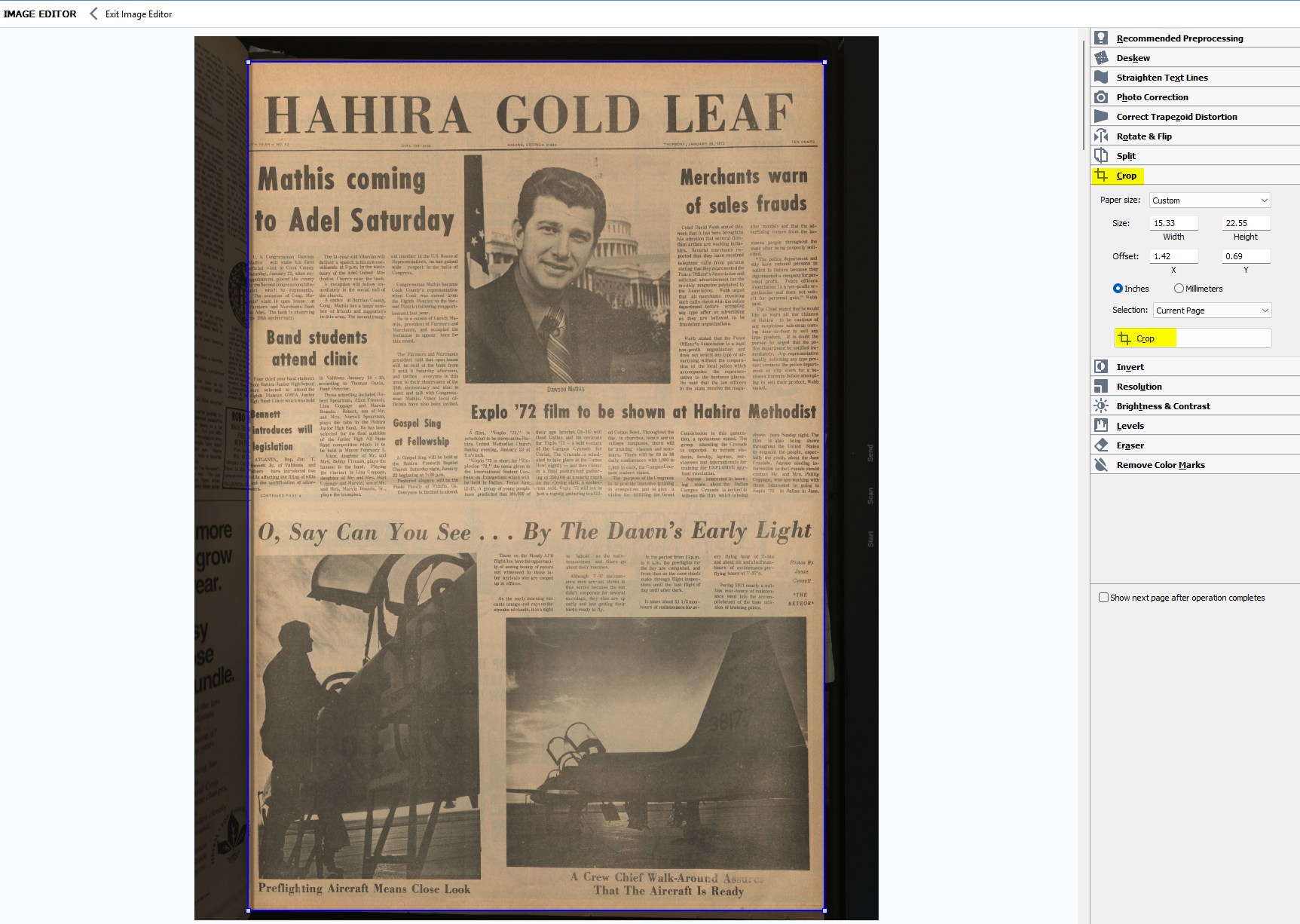
Keep page size consistent
Cropping should make the PDF look professional, but do not crop off any content. It is better to have uneven page widths than to remove text, images, or other page content.
Tip: Use the Fit to Height, Fit to Width, and Best Fit options at the bottom of the Image Editor to view the whole page.

Deskew Pages (Optional)
Use Deskew when a page is tilted. Pages and text lines should be straight and horizontal.
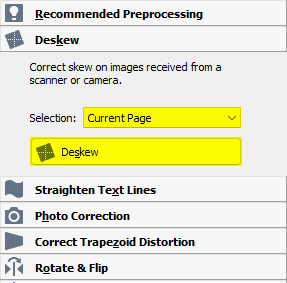
Check deskew results
ABBYY batch operations cannot always be cleanly undone. Deskew pages one at a time when the page image is difficult, uneven, or likely to be misread by the automatic tool.
Straighten Text Lines (Optional)
Use Straighten Text Lines when the page is straight but the printed text lines are still slightly angled or wavy.

Apply Photo Correction (Optional)
Use Photo Correction when the scan needs image cleanup before OCR.
Use Whiten Background when a gray or uneven background is interfering with OCR recognition.
Access copy only
Do not apply Photo Correction or Whiten Background to the master PDF. Use these tools only for the access copy, and only when needed. NOTE: Whiten background will remove details from any photos.
Correct Trapezoid Distortion (Optional)
Use Correct Trapezoid Distortion if the scanned page is not rectangular, such as when the page edges angle inward or outward.
Adjust Levels (Optional)
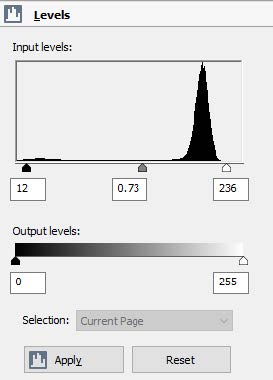
Use Levels to increase contrast when it improves readability or OCR recognition.
Move the black and white arrows toward the outside edges of the histogram peaks. Do not over-adjust the page so text, handwriting, or image detail is lost.
Use the Eraser (Optional)
Use Eraser to remove spots, marks, and blemishes when they interfere with readability or OCR.
Do not erase collection content, handwritten notes, stamps, page numbers, or other meaningful marks.
4. Run OCR Recognition
After the scan pages have been reviewed and image cleanup is complete, run OCR recognition before saving the PDF and text outputs.
- If you are still in Image Editor, click Exit Image Editor to return to the OCR Editor view.
- Select all pages in the page list. Hotkey:
CTRL-A - Click Recognize.
- Wait for ABBYY FineReader to finish processing all pages.
- Review the recognized text areas and make sure the OCR output is reasonable.
Review OCR before export
Do not export the final PDF or ocr.txt until recognition has finished and obvious OCR problems have been checked.
Handwriting that cannot be OCR'd
If ABBYY cannot read handwritten content accurately, mark the handwriting as a picture instead of text.
Use the Picture selector tool in ABBYY FineReader and draw an outline around the handwritten content on each page. Do this for every page that includes handwriting ABBYY cannot OCR reliably.
This keeps the handwriting visible in the PDF without forcing ABBYY to treat it as machine-readable text.
5. Save Output Files
Save three versions of each record:
- a large, full-size PDF master
- a smaller access PDF to share online
- a plain text file of the OCR text
Use filenames that match the item ID and short title pattern from the file organization guide.
The full-size PDF master will be converted to PDF/A later, after embedded metadata has been added.
5a. Save the Full-Size PDF Master
- Click PDF Save.
- Select Save as Searchable PDF > Exact Copy
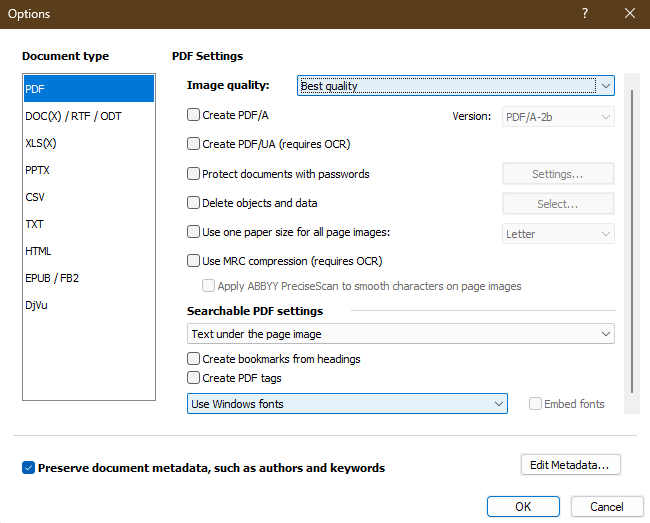
- In the save window, click Options....
Use these settings:
- Image Quality: Best Quality
- Create PDF/A: unchecked
Save the file to the item directory, 1 directory above the /scans folder.
Copy the item folder path
Use the FreeCommander red copy path button to copy the item directory path, then paste it into ABBYY FineReader when choosing where to save the PDF.

Example:
ca-001-001-001_newspaper-title_1973-01-01.pdf
5b. Save the Access PDF
- Click PDF Save.
- Select Save as Searchable PDF > Exact Copy
- In the save window, click Options....
Use these settings:
- Image Quality: Compact Size
- Create PDF/A: unchecked
Large access PDFs
If the final access PDF is still very large, over 30 MB, check the MRC Compression option when saving the access PDF.
Save the file. Append the letter a to the end of the file name to identify it as the access copy.
Example:
ca-001-001-001_newspaper-title_1973-01-01a.pdf
Open the access PDF and verify that the output is readable, sharp, and not blurry or low-resolution. If the Compact Size setting makes the PDF too blurry, remake the access PDF using the Balance image quality setting instead.
5c. Save the OCR Text File
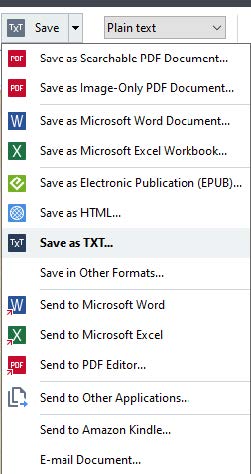
- From the PDF Save drop-down menu, select Save as Text....
- Save the file as:
ocr.txt
Before Moving On
Before continuing, confirm:
- scan pages are straight and right-side up
- page order is correct
- double-page scans were split only when appropriate
- pages are cropped cleanly and consistently
- OCR quality has been reviewed
- searchable PDF was saved
- full-size PDF master was saved
- plain text OCR file was saved
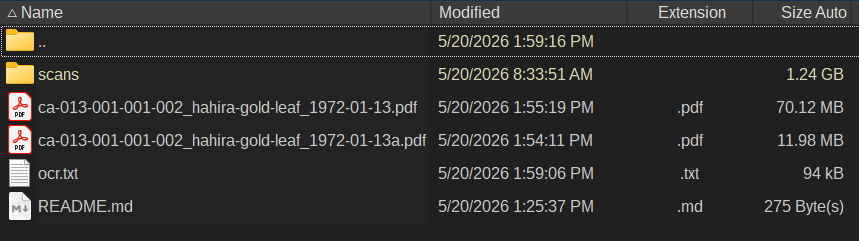
The item folder should now contain:
- the
scansfolder - one PDF access copy
- one full-size PDF master copy
- one
ocr.txtfile
Next Step
After ABBYY FineReader processing is complete, continue to Add to Vtext.