Add to Vtext

Use this guide after ABBYY FineReader processing is complete and the item folder contains the scans folder, access PDF, full-size master PDF, README.md and ocr.txt.
Workflow Overview
| Step | Section | Purpose |
|---|---|---|
| 1 | Create the Vtext Cover Page | Complete the cover page, generate the UUID and UUID folder, estimate the item Handle URL, and save the cover page as cover.pdf. |
| 2 | Add the Cover Page to the Access PDF | Insert cover.pdf as page 1 of the access PDF in Adobe Acrobat. |
| 3 | Embed PDF Metadata in the Access PDF | Add title, creator, citation, keywords, and copyright metadata to the final access PDF. |
| 4 | Create the Vtext Item | Create the Vtext item record and enter required descriptive metadata. |
| 5 | Deposit the Final Access PDF | Upload the completed access PDF after the cover page and PDF metadata are finished. |
| 6 | Edit the New Item Page | Make the access PDF the primary bitstream, add local identifiers, and upload OCR. |
| 7 | Verify Vtext Item Metadata | Confirm the item metadata and record the access PDF file size and MD5 checksum for ArchivesSpace. |
| Contingency | Temporary File Workflow | Use only when the Handle URL cannot be estimated before deposit. |
1. Create the Vtext Cover Page
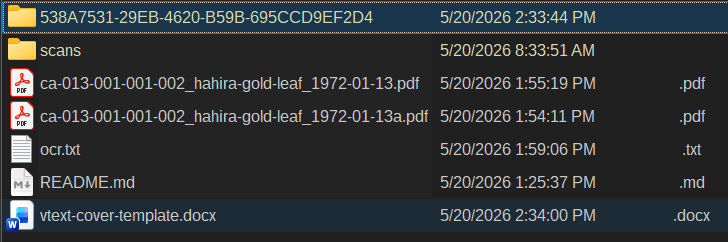
In FreeCommander, select the item folder.
Run:
Favorite Tools > Spawn Vtext Cover Page Template
This creates a Word cover page template for the item.
Reuse collection and series details
Fill in the template once with the collection and series details, then use that completed version as the starting template for each item in the same collection or series. This streamlines the process so staff do not have to start from a blank cover page each time. For each item, update the Item ID number, UUID, title, Volume/Number (if applicable), date, and citation.
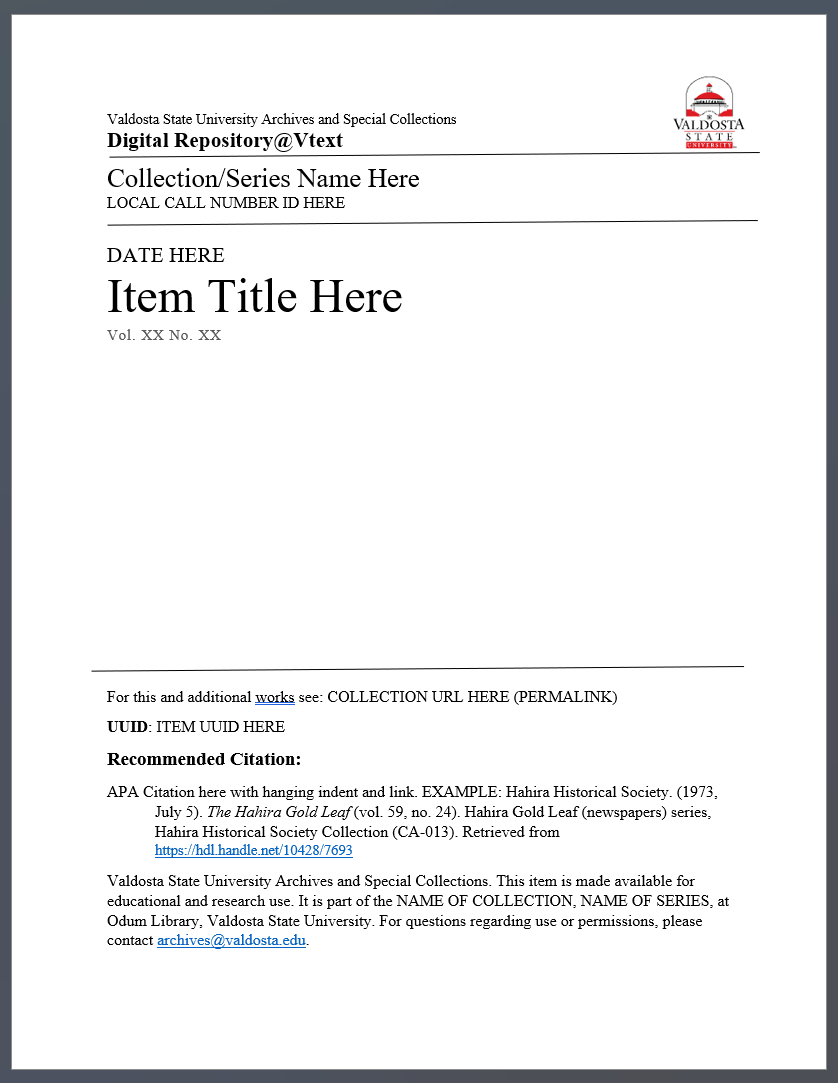
1a. Fill Out the Cover Page
Open the cover page Word document and fill out the template. Use Times New Roman font for the cover page text.
Fill out these fields:
- Collection/Series Name
- Item ID Number
- Date or Date Range
- Item Title
- Vol. and No., if applicable
- Additional Works: Collection Handle URL
- UUID, using the item UUID*
- Update the APA-style citation with correct values and item handle url. Then format with hanging indent
- Source statement: update with the Collection/Series Name
If the item does not have a volume and number, delete the Vol. and No. line from the template.
1b. Generate UUID and Create UUID Folder
If the item does not already have a UUID, generate one in FreeCommander:
Favorite Tools > Tools > Generate UUID
Create a UUID Folder After generating a UUID for the item, add it to the cover page and create a new folder in the item directory using the UUID. New Folder Hotkey: F7 in FreeCommander or CTRL-SHFT-N in Windows Explorer.
To format the APA-style citation with a hanging indent in Word:
- Highlight the citation.
- Right-click the highlighted citation.
- Select Paragraph....
- Under Indentation under the Special drop-down menu, select Hanging.
Verify font consistency and page length
Before finalizing the cover page in Microsoft Word, select all text and apply the Times New Roman font to the whole page. The cover page should be one page only. Delete extra blank lines if needed to keep it to a single page.
1c. Get the Vtext Item Handle URL
The cover page needs the item's Vtext Handle URL.
To estimate the next Handle URL:
- Open the Vtext home page.
- Go to Recent Submissions.
- Click the most recent submission at the top of the list.
- Find the Handle URI.
Example:
https://hdl.handle.net/10428/7699
For the next item, increment the final URL number by one.
Example:
https://hdl.handle.net/10428/7700
Handle estimate may be wrong
This estimate may not work if multiple people are adding items to Vtext at the same time.
If the Handle URL cannot be estimated reliably because another person may be adding items to Vtext at the same time, use the temporary file workflow.
1d. Save the Cover Page as a PDF
After the cover page Word document has the correct Handle URL and is completely filled out, save it as a PDF in the item directory.
Use this filename:
cover.pdf
2. Add the Cover Page to the Access PDF
Use Adobe Acrobat Pro to attach cover.pdf to the access PDF.
- Open the access PDF in Adobe Acrobat Pro.
- Go to All Tools > Organize Pages.
- Drag and drop
cover.pdfinto the first page position so it becomes page 1. - Save the access PDF.
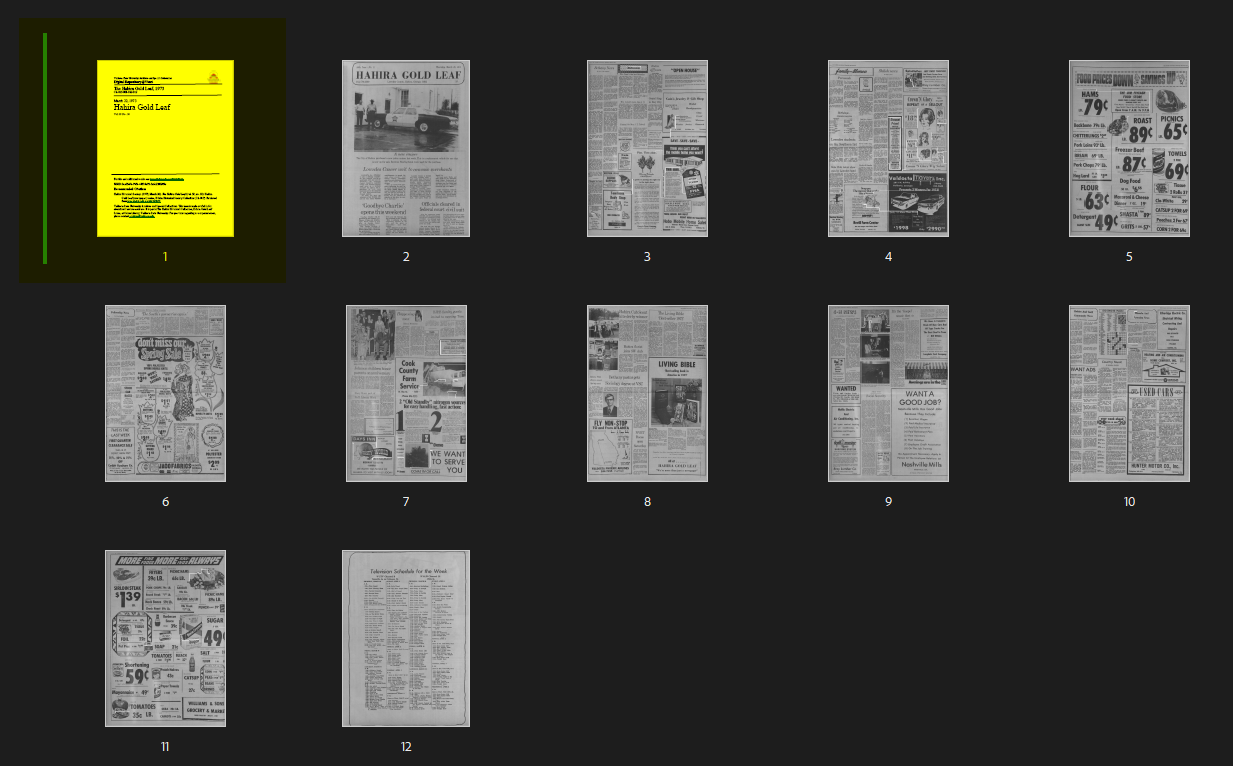
The master PDF does not need the Vtext cover page. Only the access PDF uploaded to Vtext should begin with the cover page.
3. Embed PDF Metadata in the Access PDF
After the cover page has been added, embed metadata in the access PDF before uploading or replacing the Vtext file. Then embed the same metadata into the Master PDF.
In Adobe Acrobat Pro:
- Open the access PDF.
- Open File > Properties, or press
Ctrl+D. - Fill in:
Title: use the item title from the cover page.Creator: use the creator, donor, historical society, or collection source unless a true individual creator is known.Subject: use the citation from the cover page.Keywords: enter one line separated by semicolons.
- Open Additional Metadata.
- Add:
Description Writer:Valdosta State University Archives and Special CollectionsCopyright Status:CopyrightedCopyright Notice:Source, © YYYY.
- Save the access PDF.
Example copyright notice:
Hahira Historical Society, © 1973.
© Copyright symbol
To type the copyright symbol in Windows, hold Alt and type 0169 on the numpad.
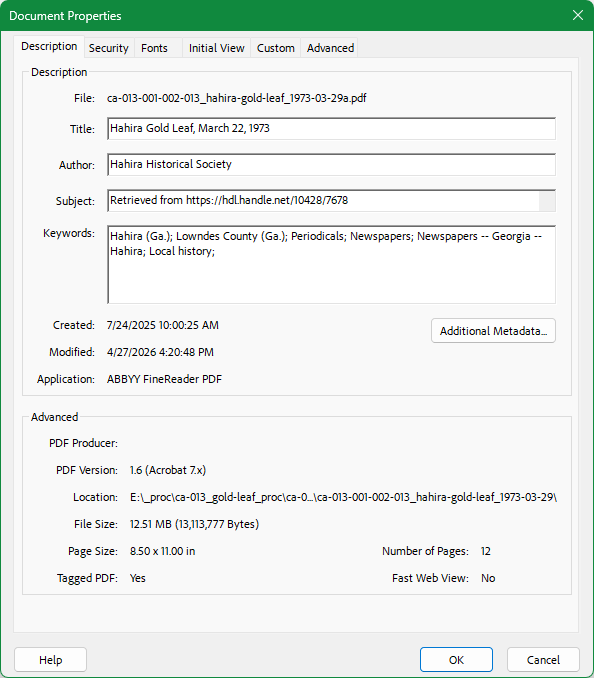
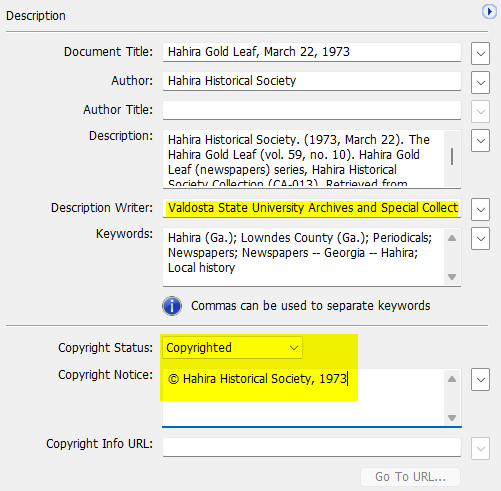
The full-size master PDF metadata is checked during Digital Preservation Processing.
4. Create the Vtext Item
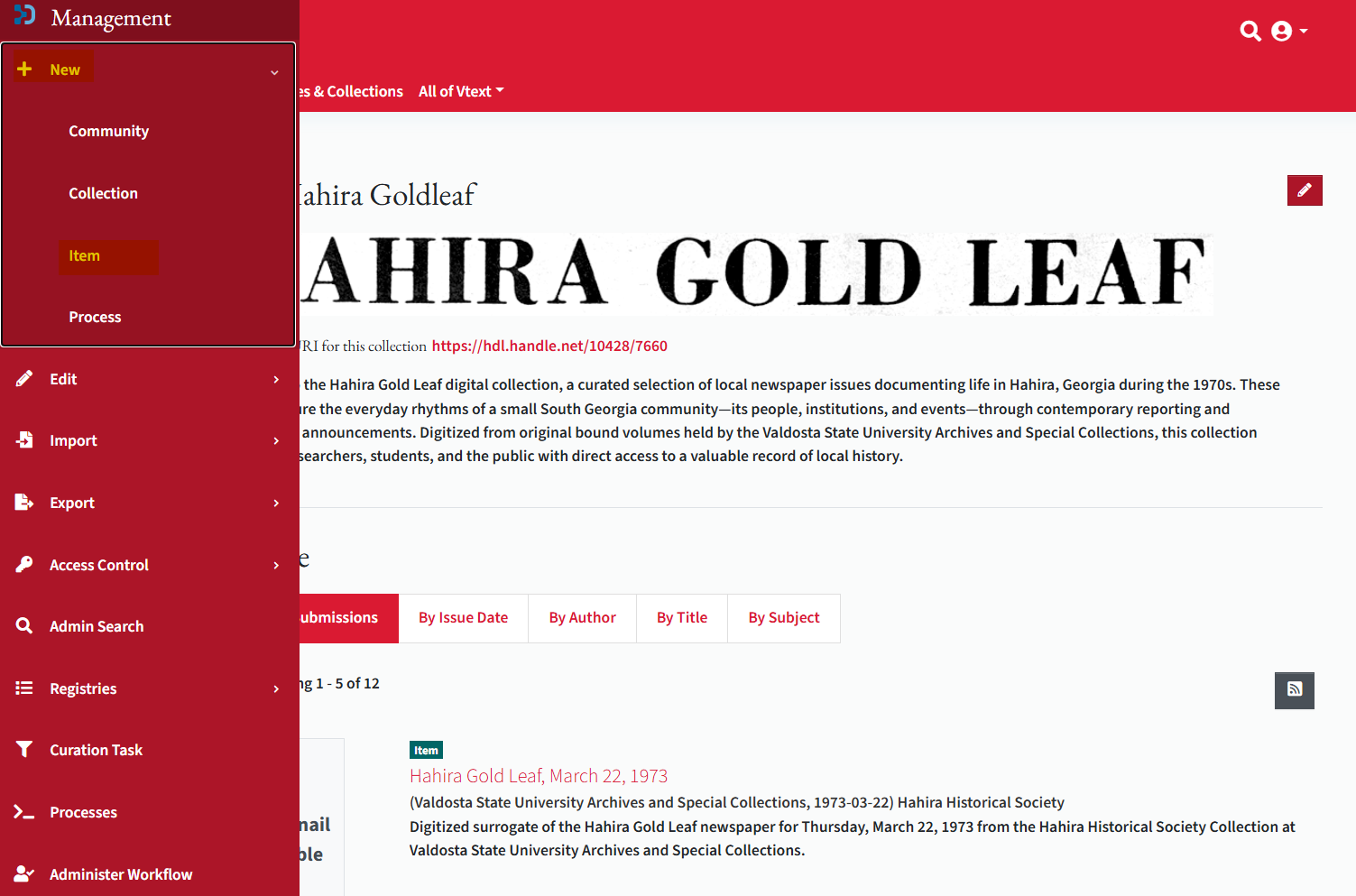
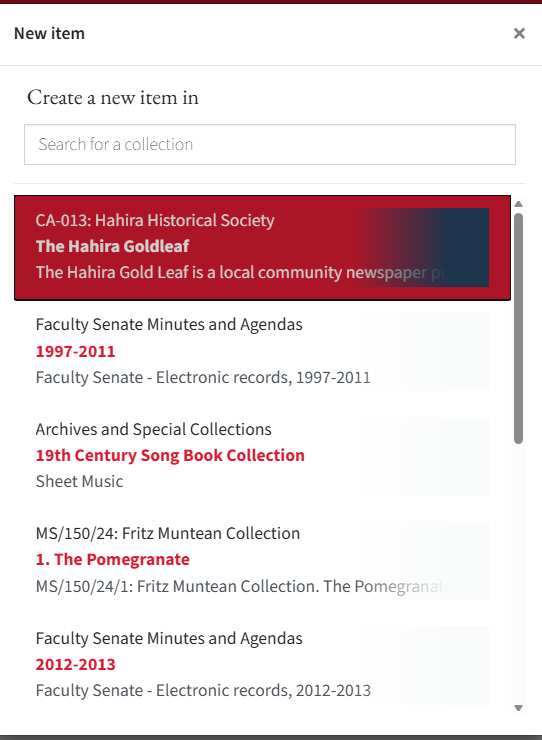
Create a new item under the Community Archives collection or series in Vtext.
- Select Create New Item.
- Search for and confirm the item is being created under the correct parent collection or series.
- Enter the required descriptive metadata.
At minimum, complete:
| Field | What to Enter | Example or Note |
|---|---|---|
Author |
Use the creator, donor, historical society, or collection source when no individual author is known. | Hahira Historical Society |
Title |
Use the item title from the local files and cover page. | Hahira Gold Leaf, March 22, 1973 |
Date of Issue |
Use the item date. | 1973-03-22 |
Publisher |
Use the repository name. | Valdosta State University Archives and Special Collections |
Citation |
Use the completed APA-style citation from the cover page. | Copy and paste the citation exactly from the cover page. |
Series / Report Number |
Use volume and number when applicable. | Leave blank if the item does not have a volume or number. |
Identifiers |
Skip for now. | Add these after the item is uploaded by editing the item metadata. |
Type |
Choose the Vtext type that best matches the item. | For anything with recurring publishing dates, use Periodicals. |
Language |
Use the item language. | Use English (United States) unless the item is in another language. |
Abstract |
Briefly describe the digitized item and collection source. | Digitized surrogate of the Hahira Gold Leaf newspaper for Thursday, March 22, 1973 from the Hahira Historical Society Collection at Valdosta State University Archives and Special Collections. |
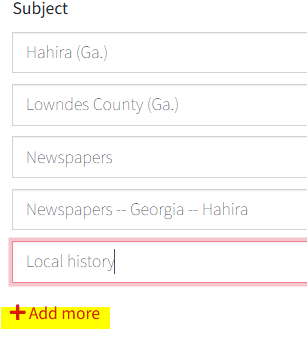
Subject |
Add each subject in its own subject field. | Use Add more to create a separate field for each subject. |
file Description |
Describe the file set, not the intellectual content. | 1 electronic record (PDF), X page scans (PNG). X MB/GB (XXXX bytes). |
For subjects, use Add more to create a separate field entry for each subject.
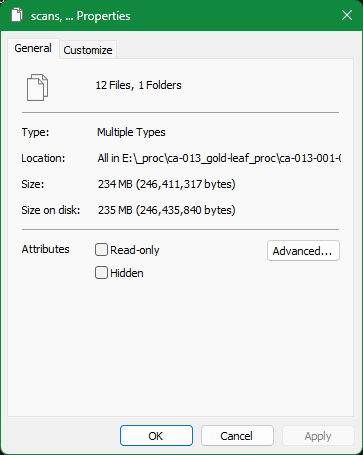
Use FreeCommander or Windows file properties to confirm the scan count and file size before entering the file description. Highlight the /Scans folder and the two PDF files, right-click the selection, then open Properties to get the total file size. This total should not include the metadata files.
5. Deposit the Final Access PDF
Upload the final access PDF only after:
- the cover page has been inserted as page 1
- the cover page includes the correct Vtext Handle URL
- PDF metadata has been embedded in Adobe Acrobat
Deposit the Access PDF file to Vtext:
- Upload the final access PDF by dragging and dropping it onto the Vtext Page.
- Check the "I confirm the license above" checkbox.
- Click the "+Deposit" Button.
After depositing the PDF and Creating the Item Page: 1. Navigate to the last page of "Your Submissions" to find the most recent item. 2. Click "View" to open the Item Page. 3. Verify the handle URL is accurate with Cover Page
6. Edit the New Item Page
After the item has been deposited, open the new item page so you can add local identifiers, set the Access PDF as the primary bitstream and upload the OCR file.
- Open the item page from Your Submissions.
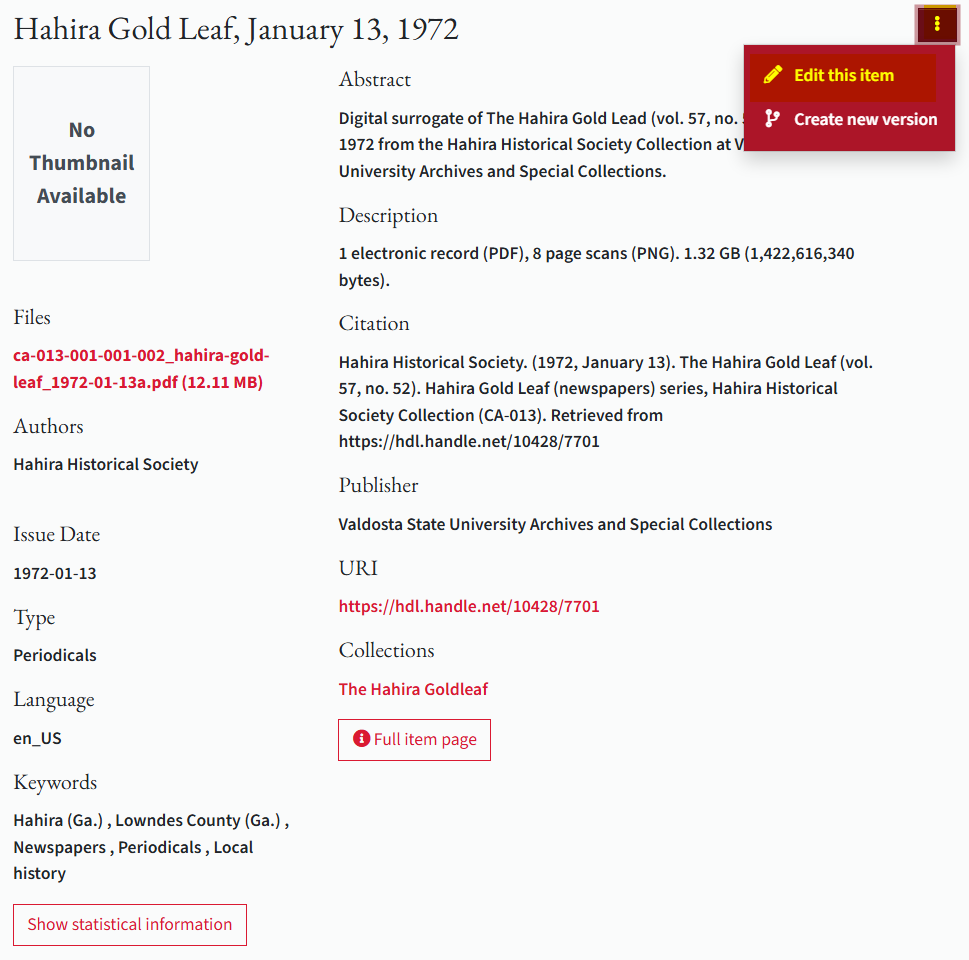
- Click the three vertical dots menu in the upper-right corner.
- Select Edit this item.
6a. Make the Access PDF the Primary Bitstream
On the Vtext item edit page, open Bitstreams.
Find the access PDF in the ORIGINAL bundle, then click the Edit button for that file.
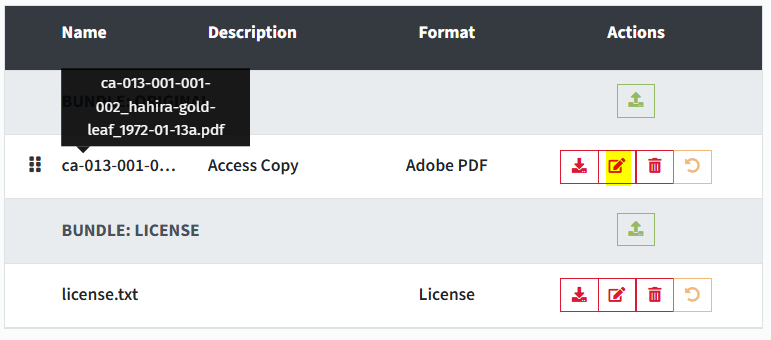
On the access PDF page:
- Check Primary bitstream.
- In Description, enter
Access PDF. - Save the bitstream changes.

6b. Add Local Identifiers
On the Vtext item edit page, open the Metadata tab and then add:
local.identifier.local: the Community Archives item ID. Search for "local". Then check confirm after entering the value.local.identifier.uuid: the UUID copied from the Vtext item URL. Search for "UUID"
Save the metadata changes before uploading OCR.
6c. Upload OCR
On the Vtext item edit page, open the Bitstreams tab.
- Click the "Upload" button
- Type "METADATA"
- Create Bundle
METADATA
- Drag and Drop
ocr.txtto theMetadatabundle. - Add
OCRto the OCR file description. - Save the item again.
7. Verify Vtext Item Metadata
Review the Full Item Details page and confirm that the item metadata is accurate and complete.
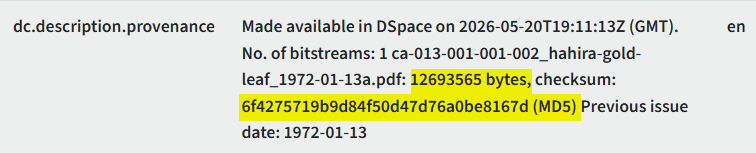
Record provenance values for ArchivesSpace
The dc.description.provenance field includes the access PDF file size in bytes and the MD5 checksum. You will need both values when adding the item to ArchivesSpace.
Additional Workflow: Temporary File When the Handle URL Is Unknown
Use this workflow only when the next Vtext Handle URL cannot be estimated reliably before deposit.
- Create the new Vtext item normally.
- Upload a temporary file, such as
ocr.txt, during the deposit step. - Click Deposit.
- Open the new item from Your Submissions.
- Select View, then Edit.
- Copy the assigned Handle URL from the item page.
- Update the cover page Word document with the correct Handle URL.
- Save the cover page as a PDF.
- Attach the cover page to the access PDF.
- Embed PDF metadata in the access PDF.
- Open the Vtext item edit page and go to the Bitstreams tab.
- Delete the temporary file.
- Upload the final access PDF with the cover page and embedded metadata.
- Keep the PDF in the
ORIGINALbundle. - Add
Access Copyto the PDF description. - Activate Primary Bitstream for the PDF.
- Save.
After the final access PDF is uploaded, continue with local identifiers and OCR upload in the main workflow.
Next Workflow
After the Vtext item metadata is verified, continue to Add to ArchivesSpace.