4. Add a New Item with a Cover Page
Use this workflow when you are creating a new Vtext item that needs an access PDF with a custom cover page, embedded PDF metadata, OCR text, and final bitstream cleanup.
Note
All Vtext items should include a cover page that contains the identifying information needed to understand and cite the item.
Goal
Create and publish a new Vtext item with:
- complete descriptive metadata
- an access PDF that begins with the Vtext cover page
- embedded PDF properties for discovery and reuse
- an OCR text file uploaded as a metadata bundle
- local files organized under the item UUID
Prerequisites
- Vtext user account with permission to create and edit items in the target collection
- ArchivesSpace user account if the item will later be transferred into ArchivesSpace
- Local item files prepared in the item working folder
- Access copy PDF and master copy PDF available
- Page scan image files available
- Vtext cover page Word template available locally
- Microsoft Word available for editing the cover page template
- Adobe Acrobat Pro available for inserting the cover page, updating PDF metadata, and exporting OCR text
- FreeCommander available for file organization, batch renaming, and local file review
Before You Start
Prepare the local files before you open the new item form in Vtext.
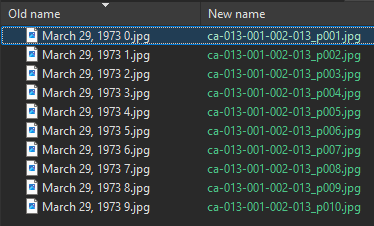
- Rename the item files to include the local item ID, short title, and date in
YYYY-MM-DDformat. - Use lowercase names and avoid spaces.
- Keep both PDFs in the folder:
- access copy PDF: append
aat the end of the filename - master copy PDF: keep the base item filename without the
a - Rename page scans with the item ID plus the page number pattern
_p[c].
Tip
The access PDF is the smaller, compressed file intended for sharing online in Vtext, and it may be converted to black and white when appropriate to reduce file size. The master PDF should remain the full-size preservation copy, should be saved locally as an uncompressed PDF/A file, and does not need a cover page.
Use FreeCommander for this step and press F2 to rename files in bulk.

Step 1. Create the New Item Shell in Vtext
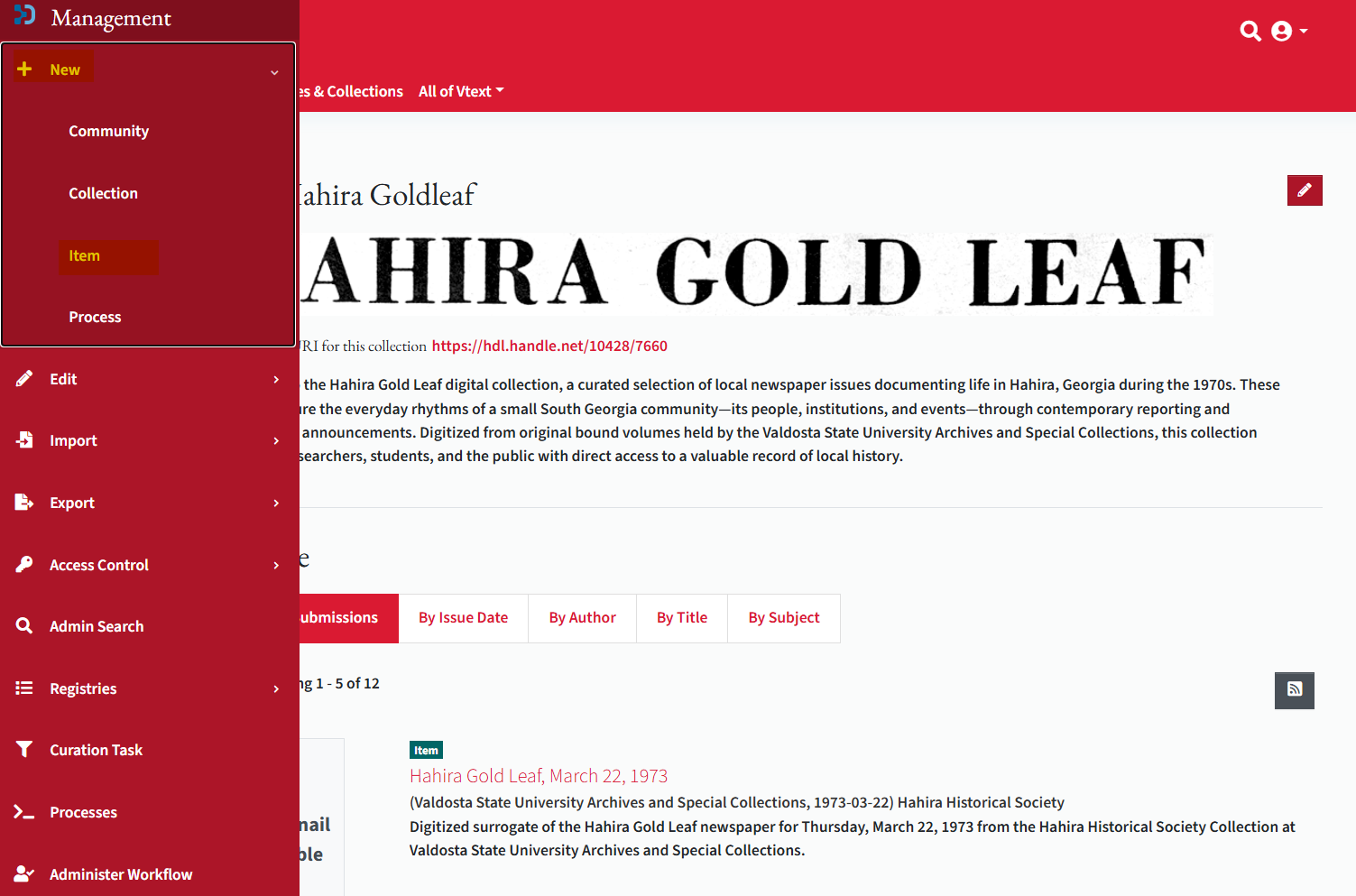
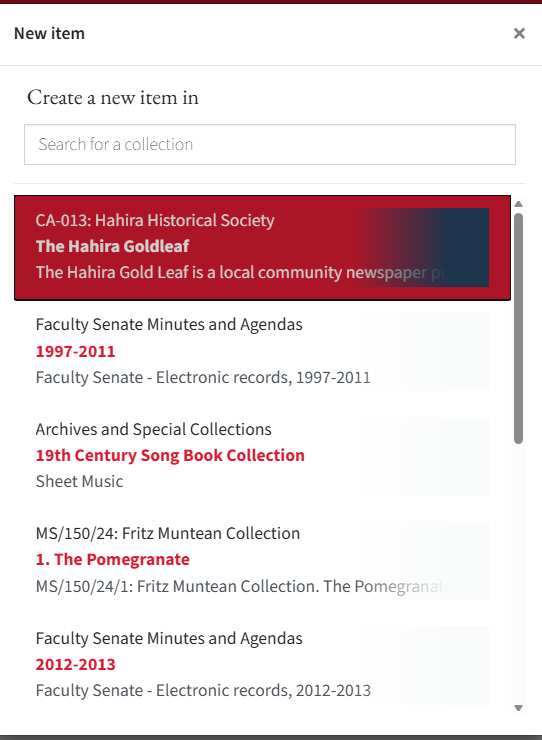
- Navigate to the correct collection or series in Vtext.
- In the left sidebar, select Create New Item.
- Confirm you are creating the item in the correct parent location before entering metadata.
Step 2. Enter the Initial Item Metadata
Complete the item form carefully, then upload the initial access PDF for deposit.
Core Fields
Fill out these fields on the new item form:
AuthorTitleDateCitationSeries / Report Number: use the localvol. XX | no. XXpattern when applicableTypeLanguage:English (United States)Abstract
Use the local abstract pattern when appropriate:
Digitized surrogate of the Hahira Gold Leaf newspaper for Thursday, March 22, 1973 from the Hahira Historical Society Collection at Valdosta State University Archives and Special Collections.
Fields to Skip for the Initial Deposit
Leave these blank during the first pass unless local policy changes:
IdentifiersUUIDLocal Archives IDAccession Number
Subjects
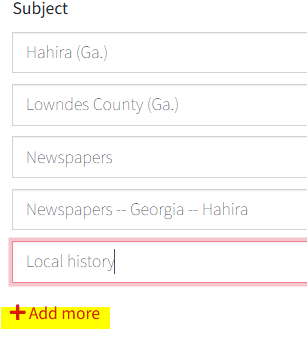
- Add one subject per field entry.
- Use Add more for additional subjects.
File Description
The Description field should describe the files, not the intellectual content of the item itself.
Example:
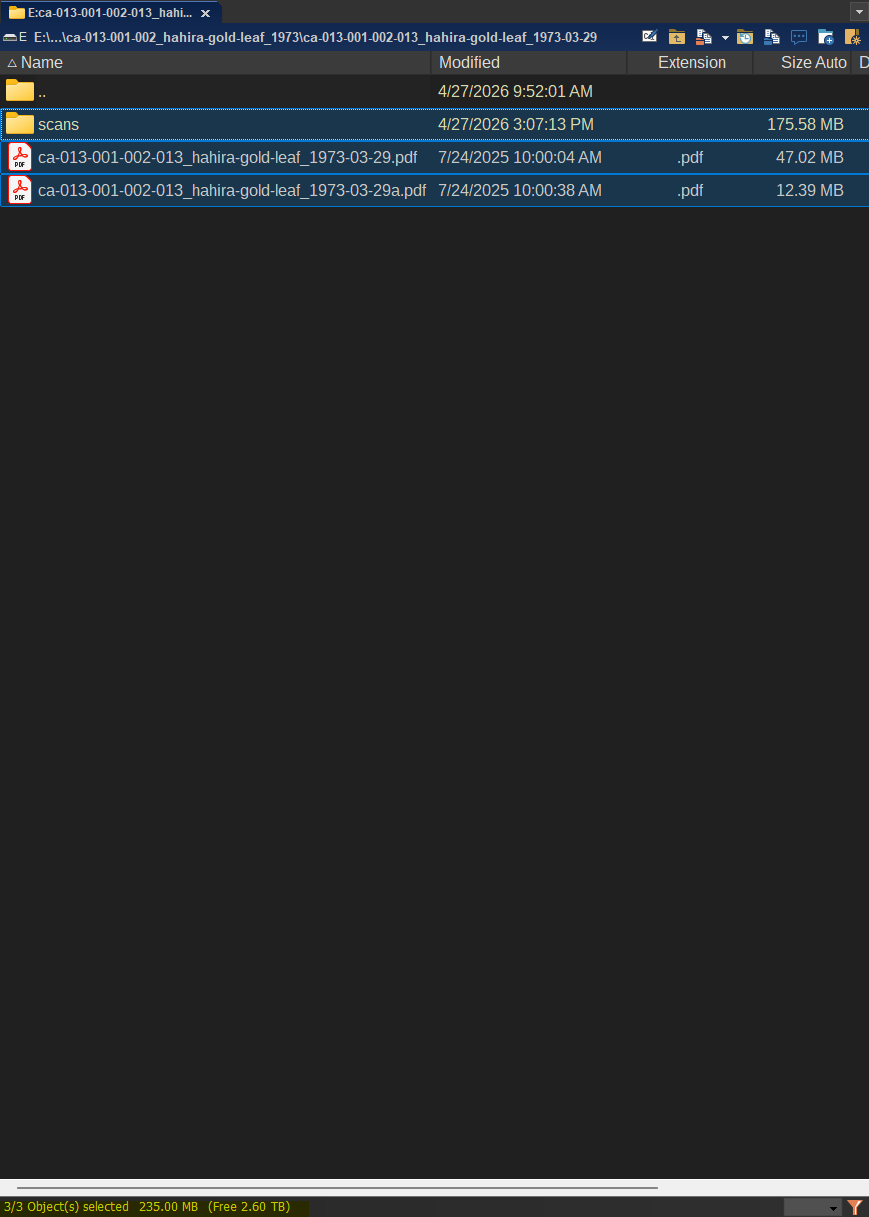
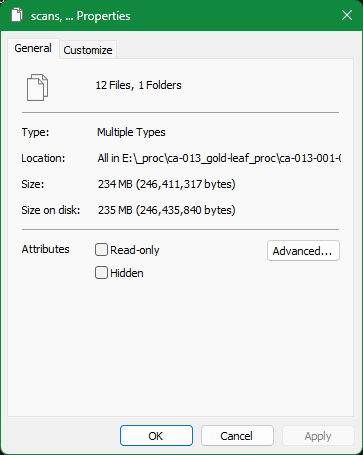
1 electronic record (PDF), digitized from original prints. 10 scans. 235.00 MB.
To calculate the page-scan count and total file size, check both PDFs and the page scans in FreeCommander or Windows Explorer.
Step 3. Deposit the Initial Access PDF
- Drag and drop the access copy PDF into the new item form.
- Grant publication permission as required by Vtext.
- Click Deposit to create the initial item record.
- After deposit, open the new item from Your Submissions and select View, then Edit.
Note
This first upload is a temporary access PDF. After you replace it with the finalized access PDF that includes the cover page, review and update any checksum and file-size values so they match the final file rather than the earlier temporary version.
Step 4. Build the Cover Page and Final PDF
Create the cover page only after the item exists, because you need the new Vtext item URL and UUID.
Update the Cover Page Template
Download the template here: Vtext cover page template
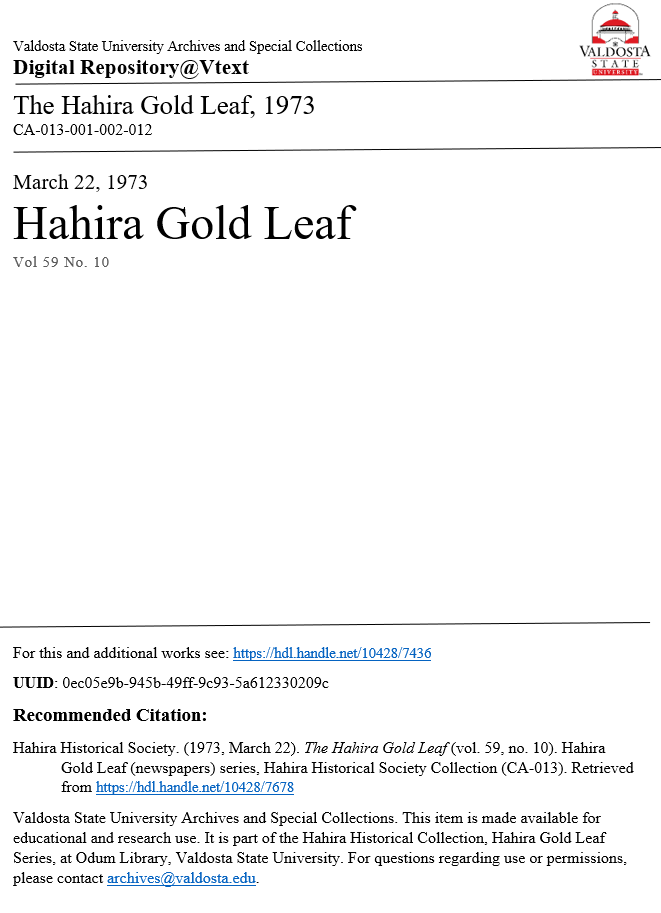
In the Vtext cover page Word template, update all relevant values so they match the item:
- collection / series / sub-series
- unique local ID
- date
- title
- volume and number, if applicable
Note
If the item does not have a volume or number, skip that field and leave it blank on the cover page.
Also update these elements:
- For this and additional works see: link
- Use the parent collection handle link in the
hdl.handle.net/10428/####format.
- Use the parent collection handle link in the
- UUID
- Copy the UUID from the Vtext item URL.
- Example item URL:
https://vtext.valdosta.edu/items/0ec05e9b-945b-49ff-9c93-5a612330209c/ - Example UUID:
0ec05e9b-945b-49ff-9c93-5a612330209c
- Recommended Citation
- Update the volume, number, dates, and item handle link.
- Use a hanging indent.
- VSU Archives statement
- Update the collection, series, and source statement at the bottom of the page.
Before saving:
- select all text and confirm the document font is
Times New Roman - save the cover page as a PDF in the item working folder
- use the filename pattern
<item-id>_cover.pdf - example:
ca-013-001-002-013_cover.pdf
Combine the Cover Page with the Access PDF
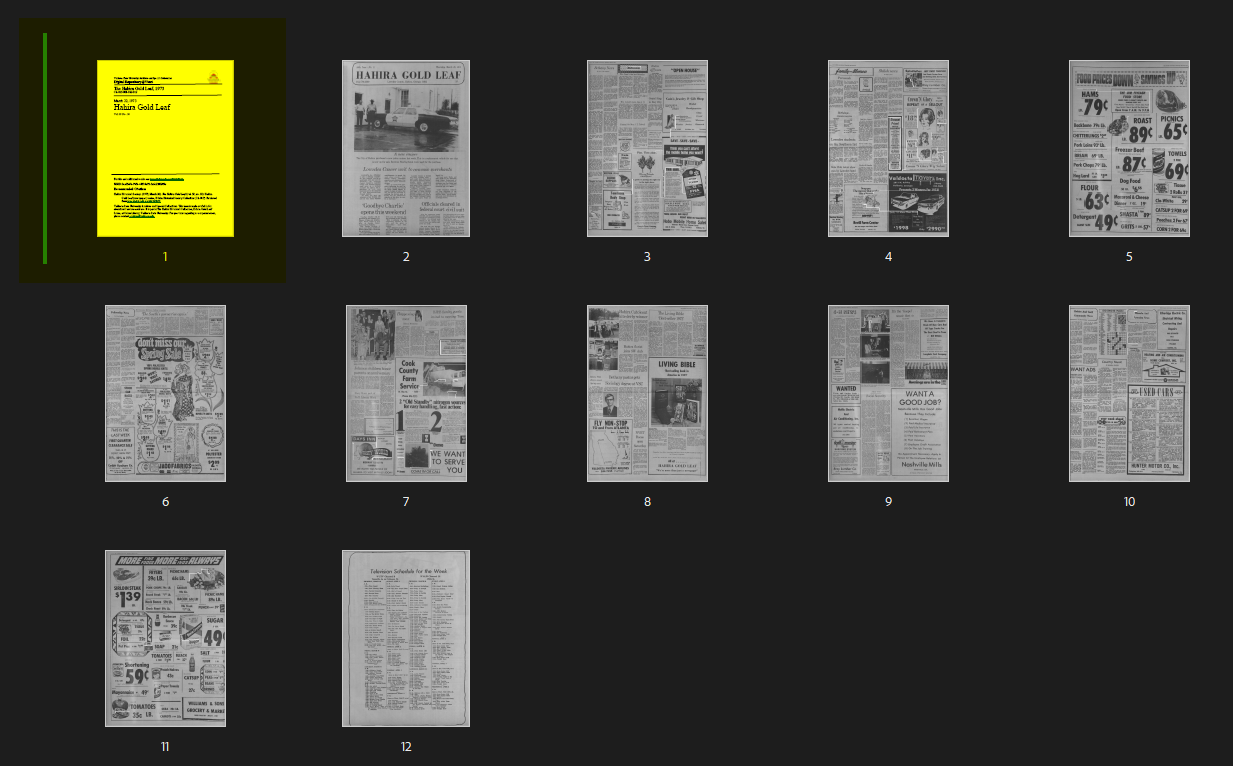
- Open the access PDF in Adobe Acrobat Pro.
- Go to All Tools > Organize Pages.
- Drag the cover-page PDF into the first position so it becomes page 1.
Embed PDF Metadata in Acrobat
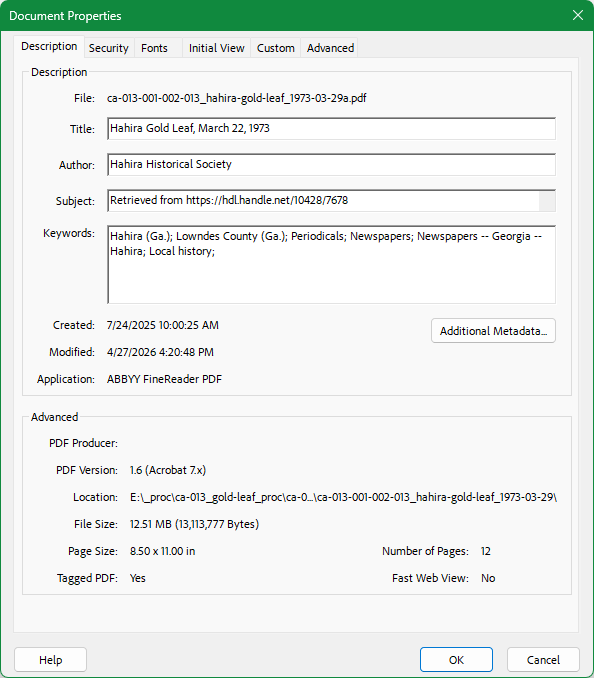
In Acrobat, open Document Properties with Ctrl+D, or use Menu > Document Properties.
Fill in:
TitleAuthorSubject: use the citationKeywords: enter one line separated by semicolons
Then open Additional Metadata and add:
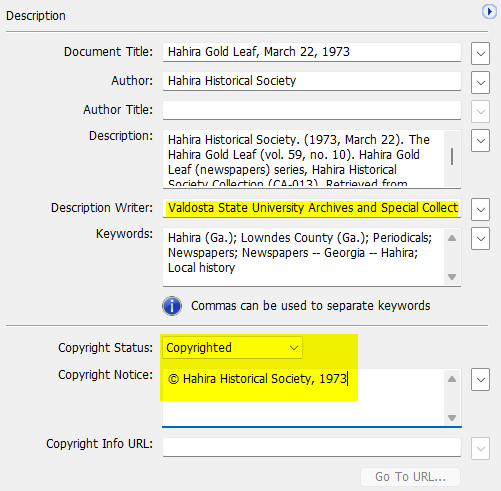
Description Writer:Valdosta State University Archives and Special Collections- copyright status:
Copyrighted - copyright statement: use the copyright symbol and attribute the source with the year when viable. For Community Archives projects, use the historical society name and the item year when known, for example:
© Hahira Historical Society, 1973
Save the updated access PDF after the metadata is complete.
Step 5. Export OCR and Add Local Identifiers
Export OCR Text
- In Adobe Acrobat, open Menu > Export a PDF.
- Export the file as Text (Accessible).
- Save the OCR text file in the item working folder.
- Use the filename pattern
<item-id>_ocr.txt. - Example:
ca-013-001-002-013_ocr.txt
Add Vtext Identifier Fields
On the item edit page in Vtext, open the Metadata tab and add:
local.identifier.local: the CA, MS, or UA item numberlocal.identifier.uuid: the UUID copied from the item URL
Save the metadata changes before updating bitstreams.

Step 6. Replace the PDF and Upload the OCR File
- Open the item edit page and select the Bitstreams tab.
- Delete the original PDF that does not include the cover page.
- Upload the final access PDF with the cover page as the replacement original bitstream.
- Keep uploaded PDF files in the
ORIGINALbundle in Vtext. - Add
Access Copyto the PDF description. - Activate the Primary Bitstream option for the PDF.
- Save.
Note
After uploading the finalized access PDF with the cover page, review the checksum and file-size values and update them if needed so they reflect the final replacement file, not the earlier temporary upload.
Tip
Use the dplab-vtext-checksum-filesize.bat drag-and-drop script for the finalized access PDF. The master copy of this script is stored at V:\librarydata\archives_store\dplab_admin\scripts\dplab-vtext-checksum-filesize.bat, and a copy can be placed on each workstation desktop for easier drag-and-drop use.
Download and script details:
- Workflow Scripts reference
- Vtext Provenance Checksum and File Size Tool
- Download
dplab-vtext-checksum-filesize.bat
Note
After the finalized access PDF is uploaded, go back to the item Metadata tab and update dc.description.provenance so it reflects the final PDF file, file size in bytes, and MD5 checksum.
Example full provenance value:
Made available in DSpace on 2026-04-14T14:45:48Z (GMT). No. of bitstreams: 1 ca-013-001-002-001_hahira-gold-leaf_1973-01-04a.pdf: 10513543 bytes, checksum: 4df6a4e411f1eef30ba5218b5f0d9147 (MD5) Previous issue date: 1973-01-04
The script copies the file-specific portion to the clipboard so it can be pasted into the provenance statement:
ca-013-001-002-001_hahira-gold-leaf_1973-01-04a.pdf: 10513543 bytes, checksum: 4df6a4e411f1eef30ba5218b5f0d9147 (MD5)
- Select Add Bundle and create a bundle named
Metadata. - Upload the OCR text file into that bundle.
- In the OCR file description, enter
OCR. - Save the item again.
Note
Upload the OCR text file so Vtext has direct machine-readable full text for indexing and search. This is generally more reliable than expecting the repository to extract text from the PDF on its own, and it can improve full-text discovery for the item.

Step 7. Download the XML and Organize the Local Folder
- Download the Vtext item metadata XML file from the item page.
- Save the XML file in the local item directory without renaming it.
- If Windows displays a warning about the downloaded file, select Keep.
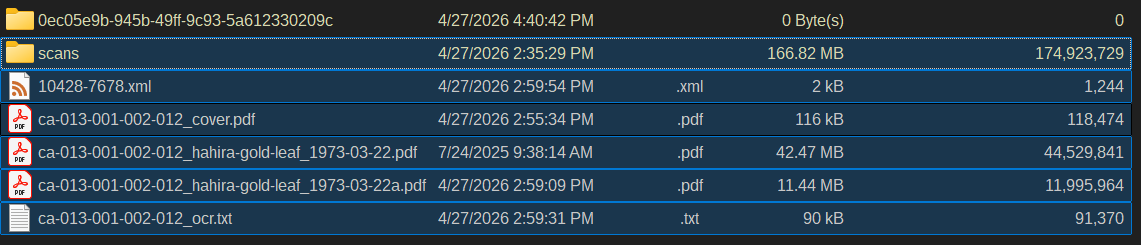
- Create a folder named with the item UUID inside the local item directory.
- Move the PDFs, OCR text file, scans, and XML into the UUID folder.

QC Checklist
- [ ] Local filenames are lowercase, consistent, and include the item ID
- [ ] Item was created in the correct collection or series
- [ ] Required metadata fields are complete
- [ ] File description reflects the files, not the intellectual content
- [ ] Final access PDF begins with the cover page
- [ ] Final PDF metadata fields are embedded in Acrobat
- [ ]
local.identifier.localandlocal.identifier.uuidare saved in Vtext - [ ] OCR text file is uploaded in a
Metadatabundle - [ ] XML export is downloaded and saved locally
- [ ] All final files are organized under the UUID folder
Troubleshooting
- Missing UUID: open the published item page and copy the UUID directly from the item URL before editing metadata
- Wrong parent handle on the cover page: return to the parent collection page and copy the
hdl.handle.netlink again - PDF uploaded without cover page: replace the bitstream from the Bitstreams tab and re-enable Primary Bitstream
- OCR file missing: re-export the text file from Acrobat and upload it to the
Metadatabundle - File-size or scan count mismatch: recheck local file properties before final save